




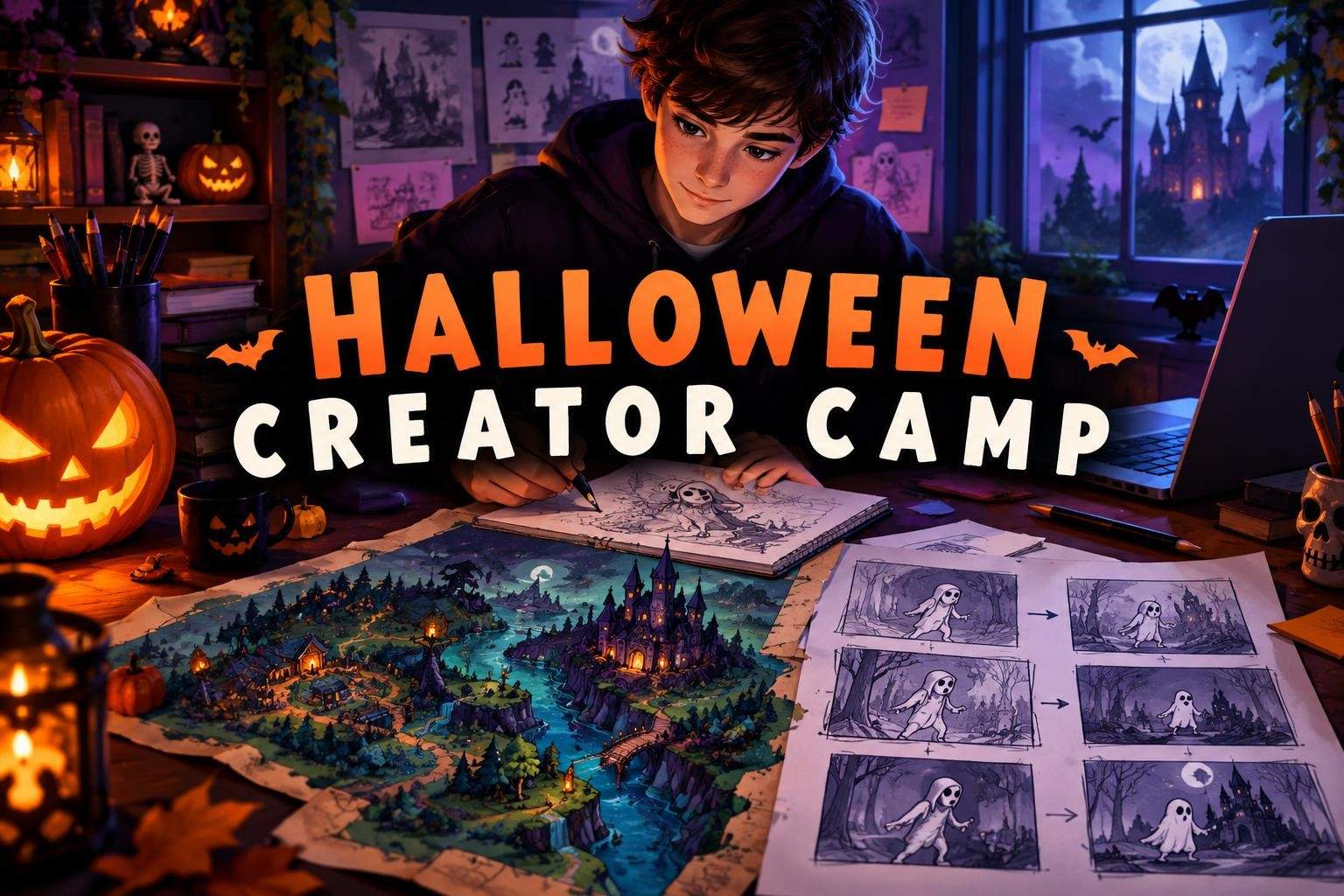
Halloween Creator Camp: Game, Story & Trailer
Neha Sharma
Ages 12–15 · 55 min · 4 / Week
$18.00per classSee schedule
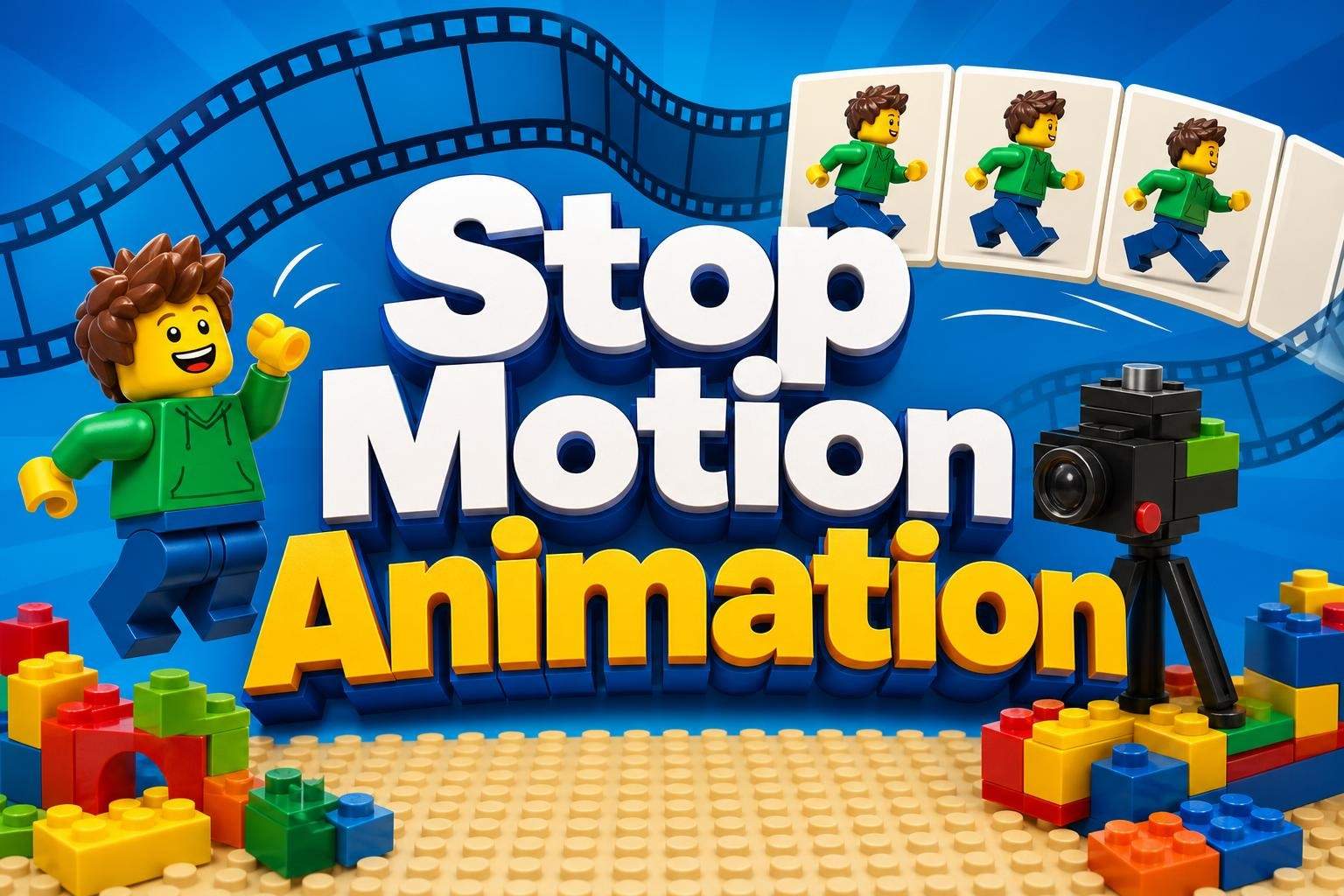
Learn to use green and blue screen filters in Stop Motion Studio Pro, focusing on setup, lighting, compositing, and practical troubleshooting to enhance stop-motion videos.
$35.00
2 classes · $17.50 per class
Paid once.
This two-session class teaches blue/green screen techniques within the Stop Motion Studio Pro app, including setup, lighting considerations, filter settings, troubleshooting, and hands-on compositing practice. Students work through demonstrations and in-class exercises to apply effects to stop-motion projects.
Explain blue/green screen compositing and its application in Stop Motion Studio Pro
Set up and use blue/green screens effectively for stop-motion projects
Apply lighting principles to improve chroma-key results
Troubleshoot common blue/green screen issues and refine compositing
Materials List:
To fully participate in the Blue and Green Screen Filters in Stop Motion Studio Pro App class, it is recommended to have the following materials:
Device: A compatible device such as a smartphone, tablet, or computer that can run the Stop Motion Studio Pro App. Ensure that the device meets the minimum requirements for the app.
Stop Motion Studio Pro App: Download and install the Stop Motion Studio Pro App on your device. Make sure you have the latest version of the app installed to access all the features and functionalities.
Blue Screen: Obtain a blue screen or a blue-colored backdrop. You can use materials such as blue fabric, blue paper, or a dedicated blue screen kit. The size of the blue screen will depend on the scale of your stop-motion projects.
Green Screen: Acquire a green screen or a green-colored backdrop. Similar to the blue screen, you can use green fabric, green paper, or a green screen kit. The size of the green screen will also vary based on your project requirements.
Lighting Equipment: Good lighting is crucial for achieving quality blue and green screen compositing. Invest in lighting equipment such as studio lights, softboxes, or LED panels to ensure even lighting on the blue or green screen. It is recommended to have at least two light sources to eliminate shadows and achieve a well-lit screen.
Tripod or Stand: Use a tripod or a stand to secure your device or camera during the stop-motion animation process. This will help maintain stability and consistency in your shots.
Optional Props and Characters: Depending on your stop motion project, you may need props, characters, or objects that interact with the blue or green screen. Prepare any additional materials required for your specific animation ideas.
Choose a time that works best for you. All times are shown in Coordinated Universal Time.
A licensed early childhood and elementary educator with a graduate degree in STEAM curriculum and additional credentials in online teaching and ICT, this instructor designs hands-on, standards-aligned STEAM lessons for young learners. Courses range from consumer math and multiply…
5.0
6 reviews for this class
Ratings are specific to this class, not the teacher's overall profile.
Only reviews with written feedback are shown below.
Neha Sharma
Ages 12–15 · 55 min · 4 / Week
$18.00per classSee schedule

Nandini Desai
Ages 9–11 · 50 min · 2 / Week
$13.00per classSee schedule
Aarohi Desai
Ages 8–10 · 55 min · 1 / Week
$15.00per classSee schedule

P. Shenbagavalli4.4
Ages 7–12 · 30 min · 2 / Week
$17.75per classSee schedule
Mr. Gagan Vasudevan4.9
Ages 13–18 · 45 min · 5 / Week
$18.74per classSee schedule
Mr. Gagan Vasudevan4.6
Ages 12–17 · 45 min · 5 / Week
$19.12per classSee schedule
Kanika Vyas4.8
Ages 14–17 · 30 min · 1 / Week
$17.40per classSee schedule

Vandana Saini4.7
Ages 8–15 · 55 min · 1 / Week
$15.05per classSee schedule
Neha Sharma
Beginner
Level
12–15
Ages
55 min
Duration
4 / Week
Classes
1
Weeks
Nandini Desai
Beginner
Level
9–11
Ages
50 min
Duration
2 / Week
Classes
2
Weeks
Aarohi Desai
Beginner
Level
8–10
Ages
55 min
Duration
1 / Week
Classes
8
Weeks
P. Shenbagavalli
Beginner
Level
7–12
Ages
30 min
Duration
2 / Week
Classes
2
Weeks
Mr. Gagan Vasudevan
Mixed Level
Level
13–18
Ages
45 min
Duration
5 / Week
Classes
1
Weeks
Mr. Gagan Vasudevan
Beginner
Level
12–17
Ages
45 min
Duration
5 / Week
Classes
1
Weeks
Kanika Vyas
Beginner
Level
14–17
Ages
30 min
Duration
1 / Week
Classes
4
Weeks
Vandana Saini
Beginner
Level
8–15
Ages
55 min
Duration
1 / Week
Classes
5
Weeks