By Kelsey Palmer ·
How to Make a Stop-Motion Animation at Home with Kids
Make a stop-motion animation at home with a phone, a stand and a free app. Step-by-step setup, frame rate guide, ideas and fixes for flicker.
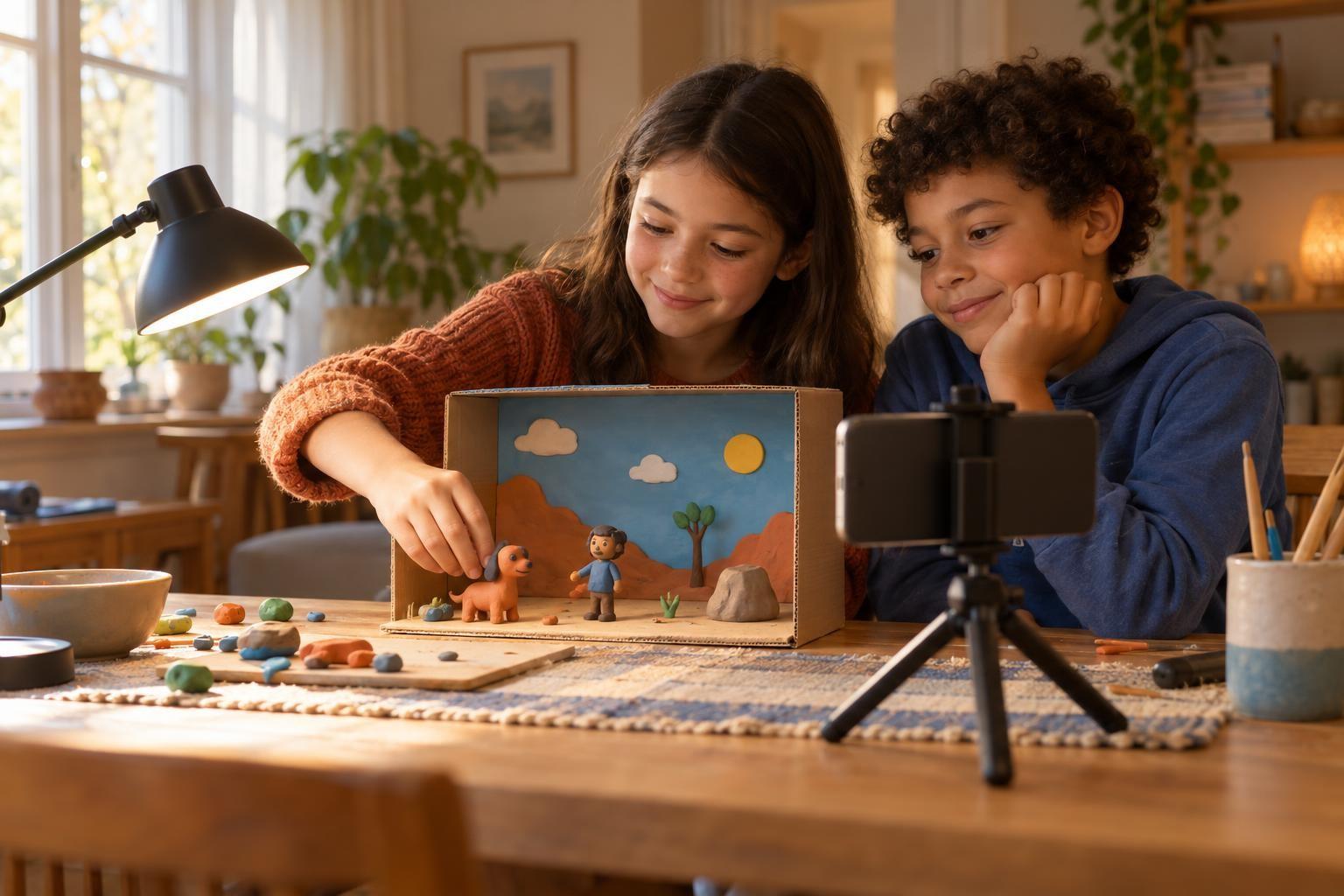
To make a stop-motion animation at home, set a phone or tablet on a steady stand, place a small figure or clay character in front of it, and take one photo, move the figure a tiny bit, then take the next photo. A free app plays the photos back in order so the figure appears to move.
A first 10-second film takes most kids about an hour. Keep the story to one simple action, lock the camera so it cannot move, use a lamp instead of daylight to avoid flicker, and start at a low frame rate. A finished jumpy film beats an abandoned smooth one.
What you need
- A phone or tablet with a camera
- A stand or a stack of books to hold the device completely still
- Something to animate: LEGO-style bricks, modeling clay, action figures, paper cutouts or even snacks
- A small "set," like a shoebox, a sheet of colored paper or a tabletop
- Steady light, such as a desk lamp
- A stop-motion app
Stop Motion Studio is a popular choice for families. It runs on iPhone, iPad, Mac, Android, Windows, Chromebook and Amazon Fire. The App Store listing shows it as free to download, with a one-time in-app purchase that unlocks all features. The free version is enough for a first film.
How to make your first stop-motion film
- Plan a tiny story. Keep it to one action: a clay ball rolls in and turns into a snake, or a figure walks to a door and opens it. Simple ideas get finished.
- Build the set. Tape the background paper down so it cannot slide. Mark where the camera and figures start with a little tape.
- Lock the camera. Put the device on a stand or prop it firmly on books. If the camera moves, the whole film will jump. Tape it down if you can.
- Fix the light. Use a lamp and close the curtains. Daylight changes over an hour and causes flicker between frames.
- Start a new project in the app and take your first photo.
- Move, then shoot. Move the figure a very small amount (about the width of a fingernail), take your hands out of the shot, then capture the next frame. Repeat.
- Use onion skinning. This feature shows a faint image of the last frame over the live camera, so kids can see how far they moved things.
- Play it back often. Check every 10 to 20 frames. It is easier to reshoot a few frames than a whole scene.
- Add sound and titles. Record a voice, add music or sound effects, and put the title at the start.
- Export and watch together. Save the video to your device and have a family premiere.
Onion skinning is the single most useful feature for smooth motion. Show your child where it is in the app before they start shooting.
How many photos do you need?
Animators talk in frames per second (fps): how many photos play each second. Fewer frames per second means less work but choppier movement.
| Frame rate | Photos for 10 seconds | Looks like | Good for |
|---|---|---|---|
| 5 fps | 50 | Jumpy but readable | Ages 5-7, first try |
| 8-10 fps | 80-100 | Fairly smooth | Ages 8-12 |
| 12 fps | 120 | Smooth, classic stop-motion feel | Teens and patient animators |
Start low. A finished 5 fps film is much better than an abandoned 12 fps one. A handy trick: if a movement looks too fast on playback, add more in-between photos with smaller moves. If it looks too slow, take a few frames out or raise the frame rate in the app's settings.
Ideas kids love
- Clay morph: A blob slowly turns into an animal.
- Brick build: A LEGO-style model builds itself piece by piece.
- Food fight: Fruit and snacks chase each other across a plate.
- Paper cutout: Flat characters slide across a drawn background, a great option for younger kids.
- Pixilation: Kids animate themselves, like "sliding" across the floor without walking. You hold the camera steady on a stand.
Kids who get hooked often enjoy a live animation class where a teacher explains timing and character movement, and they can show their clips to other young animators.
Safety and screen time
Stop-motion is a nice mix: most of the time goes into building and moving things, not staring at a screen. A few checks keep it safe.
- Watch small parts. Keep tiny bricks and clay away from younger siblings.
- Lamps get warm. Use LED bulbs and keep lights away from paper sets.
- Use original music. Built-in app sounds or your child's own voice avoid copyright problems with popular songs.
If your child wants to share online, check the platform's age rules first and leave out faces, names and school details. Sharing with family by private link is the easy option.
Frequently asked questions
Why does my video flicker?
Changing light is usually the cause. Shoot in a room with curtains closed and a lamp on, and keep people from walking past and casting shadows.
Why does everything jump around?
The camera or set moved. Tape down the device stand and the background, and tap the screen gently, or use a remote capture option if your app offers one.
What age can kids start stop-motion?
Kids around 5 or 6 can do it with a parent working the camera. From about 8, most can run a short project on their own.
Do we need to pay for an app?
Not for a first film. Stop Motion Studio is free to download, and the free version covers everything a beginner needs. The paid upgrade can wait until your child is making films regularly.
Help your young animator level up
If your child keeps asking to make "just one more" film, a live animation class can teach timing, character movement and storytelling, with other young animators to share clips with.