By Brittany Whitaker ·
How Kids Can Play Chess Online Safely
Set up safe online chess for kids: compare ChessKid, Lichess kid mode, and Chess.com chat settings, plus family rules and screen time tips that work.
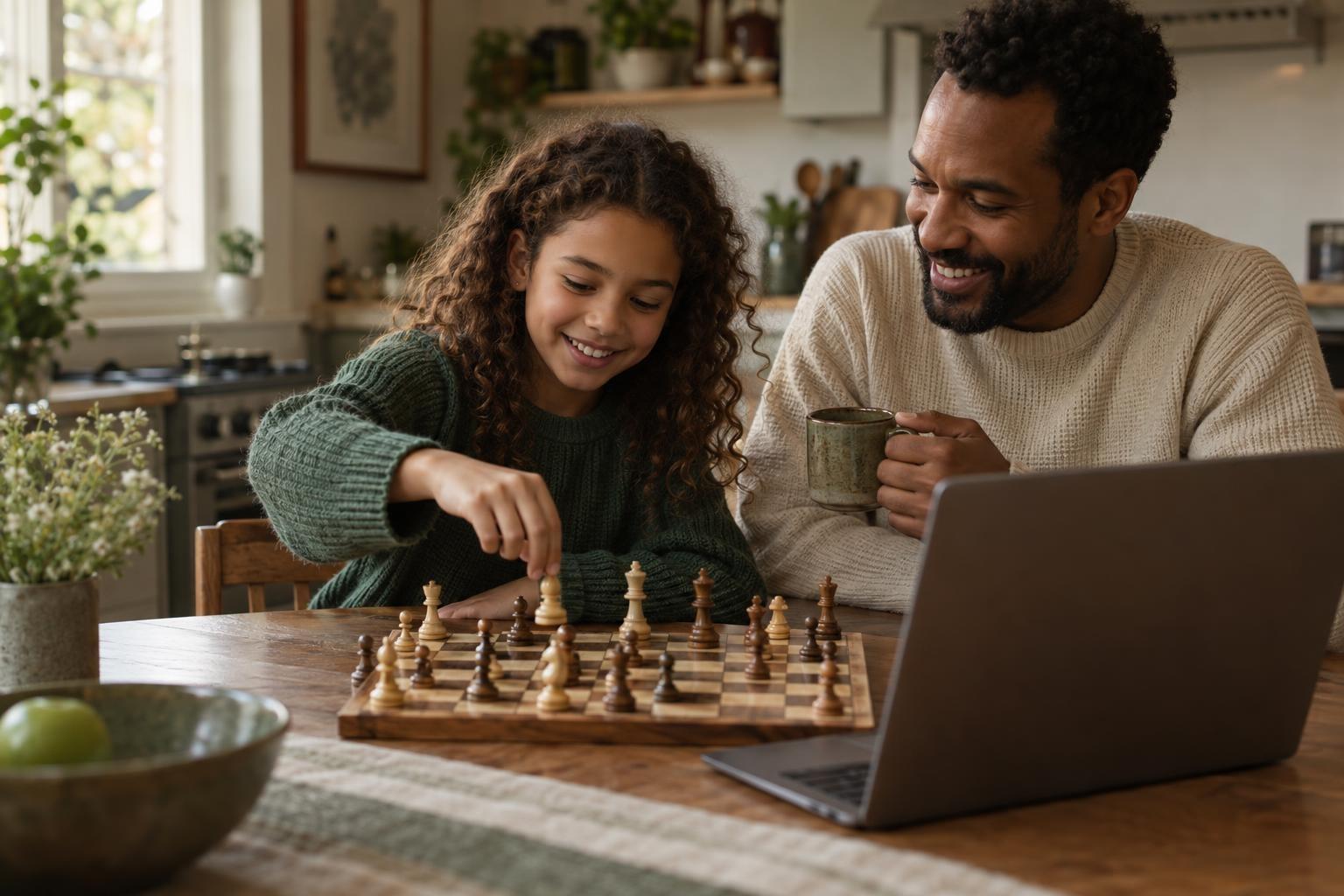
The safest way for a child to play chess online is on a site built for kids, or on a general site with kid mode and chat limits turned on. That way your child can play games without strangers messaging them, and a few minutes of setup plus some simple family rules makes online chess a low-risk hobby.
Younger kids usually do best on a kid-only platform like ChessKid. Older kids on Lichess or Chess.com should have kid mode, Safe Mode or chat limits switched on. Start with bots, puzzles and games against family, agree on a few family rules, and keep play in a shared space with a daily limit.
Choose the right platform
Popular chess sites handle safety in different ways. Here is a quick comparison of three well-known options.
| Site | Built for | Key safety features |
|---|---|---|
| ChessKid | Children | Kids cannot chat or message each other. Parents can be linked as guardians and can turn off social features. |
| Lichess | All ages (free) | Kid mode removes chat and private messages from the account. |
| Chess.com | All ages, with a minimum age | Chat can be turned off or limited to friends. A Safe Mode option turns off messages, chat and comments. |
For younger kids, a kid-only platform is usually the simplest choice. Older kids who want stronger opponents often move to a general site with safety settings on.
How to set up ChessKid
- Create your child's account using a username that does not include their real name, school or age.
- Link yourself as a guardian. In your child's Account Settings, enter your email in the Guardian's Email field.
- Check your "My Kids" list to confirm the link worked.
- If you want to stop friend requests, use the Disable Social Access option on your child's edit page.
- Decide together which clubs, if any, your child will join. Guardians control club membership.
How to turn on kid mode on Lichess
- Log in to your child's account on lichess.org.
- Click the username at the top of the page and choose Preferences.
- Select Kid mode from the menu.
- Enter the account password, then click to enable kid mode.
- Look for a small smiley icon next to the Lichess logo. It shows kid mode is on.
Keep the password to yourself, since the same password is needed to turn kid mode off.
How to limit chat on Chess.com
- Check that your child meets the site's minimum age. Chess.com asks for parental consent if it learns a member is underage.
- Open the game or app settings and turn in-game chat off, or limit it to friends only.
- For stronger protection, ask Chess.com Support to turn on Safe Mode. It switches off messages, chat and comments for the account.
- Show your child how to block a player. Blocked players cannot message, challenge or friend them.
Settings menus change from time to time, so check the site's help pages if a name looks different.
Lower-risk ways to start
Your child does not have to play strangers right away. Most chess sites offer options with no other people involved at all.
- Play against the computer. Bots can be set to an easy level, so beginners can win some games.
- Solve puzzles. Short tactics puzzles build skill without any chat or matchmaking.
- Challenge family and friends. Most sites let you send a game link or challenge a friend directly.
Once your child is comfortable, they can move on to rated games against other players with chat turned off.
Family rules for online chess
Settings help, but habits matter too. Agree on a few rules before your child starts.
- Keep personal details private. No real names, schools, ages, locations or photos in profiles.
- Only accept challenges and friend requests from people you know. Random players are fine for games, not for friendships.
- Tell a parent about anything weird. That includes rude messages, pressure to move to another app, or requests for photos.
- Play in a shared space. A laptop at the kitchen table is easier to keep an eye on than a phone in a bedroom.
- Take breaks after losses. Fast games can be frustrating. A short walk is better than "one more game" while upset.
Safety and screen time
Online chess can be quick and addictive, especially blitz and bullet games that last only a few minutes. Consider setting a daily game limit or time window. Mixing in puzzles, lessons and over-the-board games with family keeps things balanced.
If you are curious about what chess can and cannot do for kids, our article Is Chess Good for Kids? Benefits and Realistic Expectations gives a balanced view.
Learning with others safely
Some kids want more than random online games. A live small-group class lets them play and analyze games with peers, guided by a teacher. Undoschool classes are recorded for safety, which gives parents extra peace of mind.
Frequently asked questions
What age is right for online chess?
Kid-focused sites welcome young beginners. General sites set a minimum age, so check their terms before creating an account.
Can my child still play strangers with chat turned off?
Yes. Turning off chat removes messages, but your child can still be matched with opponents and play normal games.
Should I use my account or create one for my child?
Create a separate account for your child. That way their settings, ratings and history stay their own, and you can apply kid-specific limits.
What should my child do if someone sends a rude message?
Block the player, stop chatting and tell a parent. Then check that chat limits or kid mode are switched on for the account.
Find structured, friendly chess practice
Live small-group classes let kids play, analyze games and build strategy with peers and a teacher, in a setting designed for young learners.