By Olivia Ellis ·
A First Machine Learning Project for Kids with Teachable Machine
Help your child train their first AI model in 30 minutes with Google's free Teachable Machine. No coding, step-by-step, with project ideas by age.
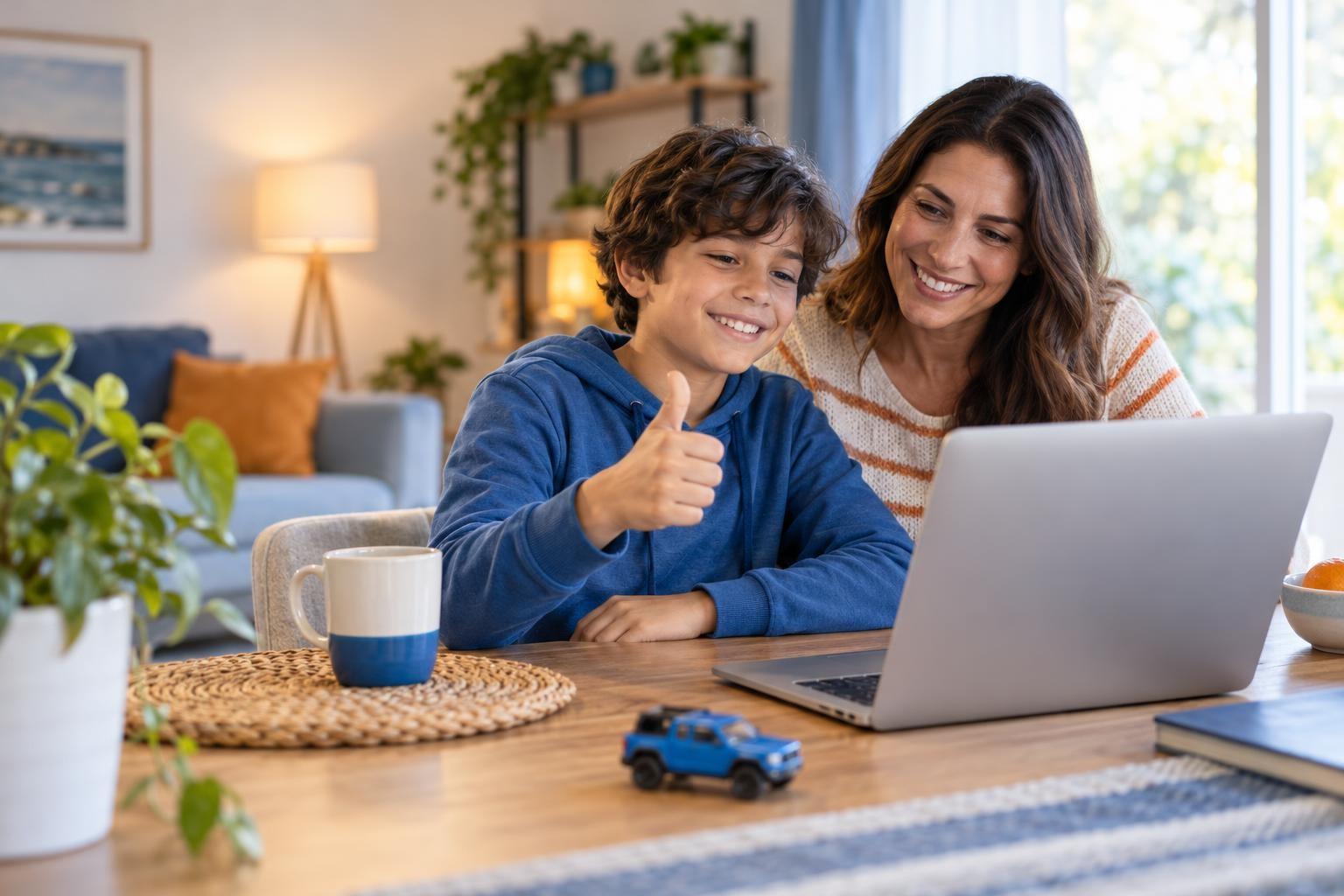
A great first machine learning project for kids is training a computer to tell two or three things apart, like a thumbs up and a thumbs down, using Google's free Teachable Machine in a web browser. Here is how to set it up and run it together.
No coding is needed, a project takes about 30 minutes, and your child sees right away how the examples they give change what the computer learns. The big lesson comes when the model gets confused and your child fixes it with better examples.
What Teachable Machine is
Teachable Machine is a free, web-based tool from Google that lets anyone train a simple machine learning model without writing code. According to Google's announcement of Teachable Machine 2.0, you can train a model to recognize three kinds of input:
- Images, from files you upload or a live webcam
- Sounds, recorded with a microphone
- Poses, such as standing versus sitting
Google says the examples you record stay on your device and the training happens in your browser. Data only leaves your computer if you choose to save the project to Google Drive. That makes it a comfortable first step for families who are careful about privacy.
What you need
- A laptop or desktop with a webcam (a microphone too, if you try a sound project)
- An up-to-date web browser
- Two to four everyday objects, or just your hands
- About 30 minutes and a well-lit table
Build a "thumbs up or thumbs down" model in seven steps
- Open Teachable Machine and choose an image project with the standard image model.
- Name your classes. Rename "Class 1" to "Thumbs up" and "Class 2" to "Thumbs down". Add a third class called "Nothing" for an empty frame. This extra class teaches the model what to do when no hand is showing.
- Record examples. Use the webcam button to capture around 50 to 100 pictures for each class. Have your child move their hand around, tilt it and change distance so the model sees variety.
- Train the model. Click Train and keep the browser tab open while it works. This usually takes under a minute for a small project.
- Test it live. The preview panel shows the model's guess as a percentage for each class. Let your child try both thumbs, then try tricky cases like a sideways thumb.
- Find a weak spot. Ask, "When does it get confused?" Maybe it fails in dim light or with a different person's hand.
- Fix it with better data. Add more examples of the confusing cases and train again. Seeing the model improve is the big lesson: the computer only knows what its examples taught it.
Project ideas by age
| Age | Project idea | What it teaches |
|---|---|---|
| 6-8 | Sort two stuffed animals, or happy face versus surprised face, with a parent at the mouse | Computers learn from examples |
| 9-10 | Recycling sorter: paper, plastic bottle or can | More examples and variety make better guesses |
| 11-12 | Sound model that hears clapping, snapping or whistling | Background noise and balanced data matter |
| 13-14 | Pose model for exercise reps: arms up or arms down | Testing, measuring accuracy and spotting bias |
| 15-18 | Export a model and use it in a simple web page or game | How trained models plug into real apps |
Google notes that trained models can be exported for websites and apps, built on its open-source TensorFlow.js library, so older teens have room to keep going.
Turn it into real learning
The hands-on part is fun, but the conversation afterwards is where most of the learning happens. Try these questions:
- What did the model actually look at? Was it your thumb, or the color of your sleeve?
- What happened when someone else tried it? Why might a model work better for some people than others?
- If you had to build this for a whole class, what examples would you collect?
These questions lead straight to big ideas in AI, like training data, accuracy and fairness. Google's post mentions a middle school AI ethics curriculum built partly around this tool, which shows how well it works for these talks. If your child wants to go further, a live class where a teacher guides several kids through building and testing models can add structure and friends to compare results with.
What to watch for
- Saving and sharing: Only save to Google Drive from a parent's account, or a child account you manage, and do not share project links publicly if they include faces.
- Frustration: Early models often guess wrong. Frame mistakes as clues, not failures.
- Screen time: Keep sessions short and mix in offline prep, like drawing a plan of which classes to train.
Record in a room without family photos, mail or anything personal in view, especially if you plan to save to Drive.
Frequently asked questions
Does my child need a Google account to use Teachable Machine?
Google describes saving to Google Drive as an option for picking up a project later. For a single session, you can train and test in the browser. Check the current sign-in requirements on the site before you start.
Is this real machine learning?
Yes. Your child collects labeled data, trains a model and tests it, which are the same basic steps professionals use, just at a much smaller scale.
What should we try after the first project?
Switch to sounds or poses, add more classes, or test the model on a friend and record how often it is right. Older kids can try exporting the model into a simple web page.
Why add a "Nothing" class?
It teaches the model what an empty frame looks like, so it does not have to force a guess of thumbs up or thumbs down when no hand is showing.
Go further with AI, guided by a teacher
If training a first model sparked your child's curiosity, live AI and data science classes guide kids through building, testing and questioning models, with classmates to compare results with.