By Morgan Hayes ·
How to Install Roblox Studio for Kids
Install Roblox Studio for your child: check your Windows PC or Mac, download free from create.roblox.com, sign in, test it, and set up safely for class.
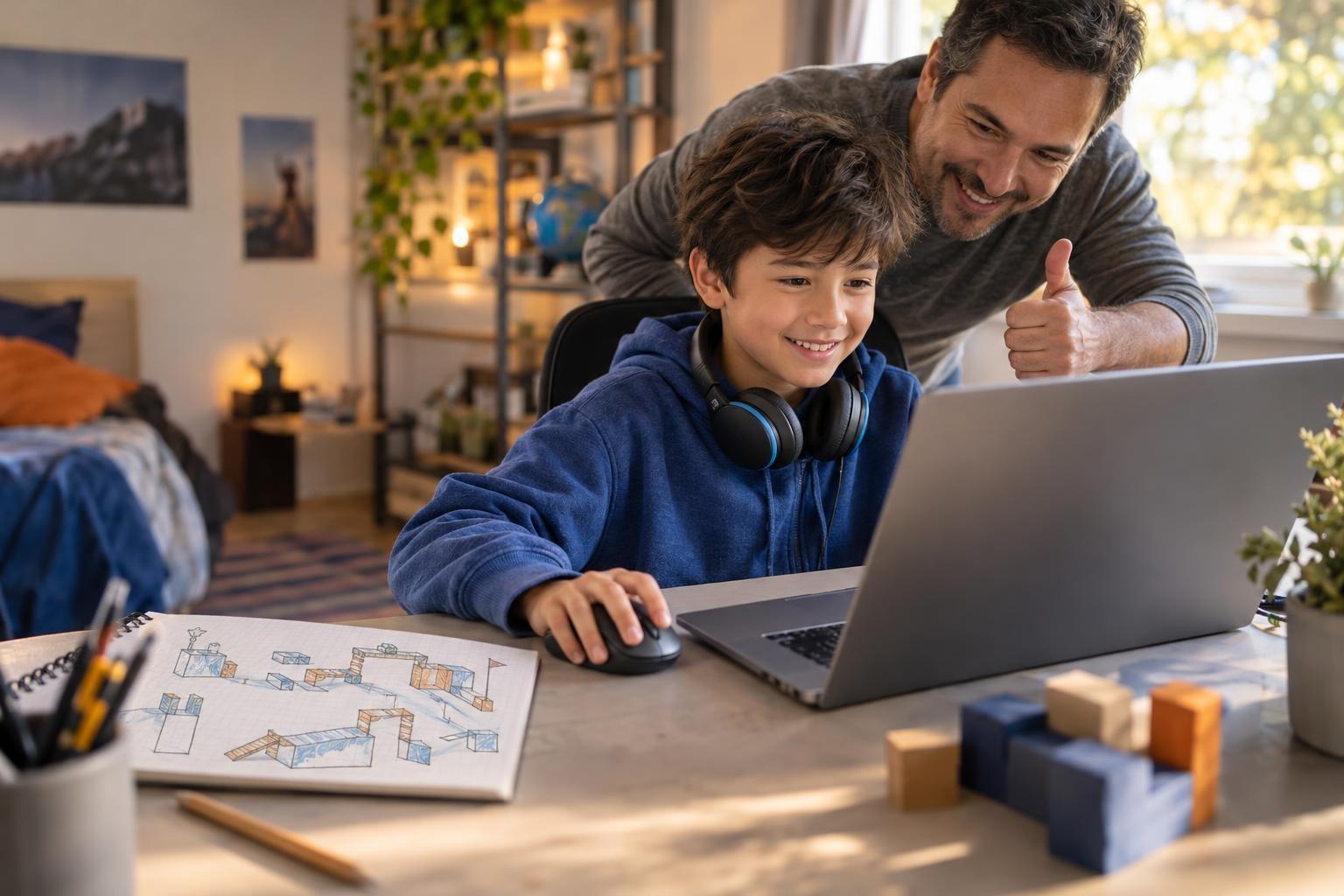
Roblox Studio is free. Download it from create.roblox.com on a Windows PC or Mac, then sign in with your child's Roblox account. It doesn't run on iPads, phones or Chromebooks, so check your device before a building class; setup takes about 15 minutes.
Confirm you have a Windows PC or Mac that meets Roblox's requirements, set up your child's account with a real birth date and parental controls, download Studio only from create.roblox.com, and run a quick test well before the first class. A mouse, headphones and a remembered password prevent most class-day delays.
Step 1: Check your computer
Roblox Studio is the tool for building games. It's different from the Roblox app used for playing. Studio only runs on Windows and Mac computers.
| Device | Can it run Roblox Studio? |
|---|---|
| Windows PC or laptop | Yes |
| Mac | Yes |
| Chromebook | No |
| iPad or Android tablet | No |
| Phone | No |
Roblox lists these system requirements on its official setup page:
- Operating system: at least Windows 10 or macOS 10.14. Windows 11 or macOS 14 and later are recommended.
- Memory: at least 3 GB of RAM, with 8 GB recommended.
- Screen: 1600 x 900 resolution or higher is recommended.
A mouse is very helpful. Moving the camera and placing parts is much easier than with a trackpad.
Step 2: Set up a Roblox account
Studio uses the same login as the Roblox game. If your child already plays Roblox, they can use that account.
- Create an account if needed. Go to roblox.com and sign up with your child's real birth date. Roblox uses it to apply age-based settings.
- Add a parent email. This helps with password recovery and parental controls.
- Choose a safe username. Avoid real names, ages, schools or locations.
- Review parental controls. Set chat, spending and content limits before your child starts building.
For more on settings, read Is Roblox Safe for Kids in 2026?
Step 3: Download and install Studio
Always download Studio from Roblox's official site. Avoid third-party download pages.
- Go to create.roblox.com. This is Roblox's official site for creators.
- Click the button to download Studio. The site detects whether you're on Windows or Mac.
- Open the installer. Find it in your browser's downloads. On Windows it's RobloxStudio.exe. On a Mac it's RobloxStudio.dmg.
- Let it install. Windows may ask for permission to make changes. On a Mac, follow the prompts to open the app.
- Click Launch Studio. A confirmation window appears when installation finishes.
- Sign in. Use your child's Roblox username and password.
Roblox's own setup instructions are on its Studio setup page if anything looks different.
Step 4: Do a quick test
Test Studio before the first class, not five minutes before it starts.
- Open a template. Pick a simple starting template, such as a basic baseplate.
- Add a part. Insert a block and move it around.
- Press Play. Check that your child's character appears and can walk around.
- Stop and close. Make sure you know how to exit test mode.
If Studio runs slowly, close other programs and browser tabs. Restart the computer if it freezes.
If something goes wrong
Most install problems have simple fixes. Try these before class day.
- The installer won't open. Check that you're on a Windows PC or Mac, not a Chromebook. Then download the installer again from the official site.
- Sign-in fails. Confirm the username and password by logging in at roblox.com first. Reset the password through the parent email if needed.
- Studio is very slow. Older computers with little memory may struggle. Close other apps and use a simple template.
- A school or work laptop blocks it. Managed computers often block new software. Use a home computer instead.
Step 5: Get ready for class
- Arrange two windows. Your child will watch the class video and use Studio at the same time. A second monitor helps, but splitting one screen works.
- Use headphones. They help your child hear the teacher clearly.
- Keep the login handy. Forgotten passwords are a common class delay.
- Update Studio. Studio updates often. Open it a little early in case an update installs.
A live small-group class can walk kids through Studio's tools step by step. For a longer learning path, see Roblox Coding for Kids Complete Roadmap.
Safety and screen time
- Building is private by default. A new project in Studio isn't visible to others unless your child publishes it and changes who can play.
- Publishing to the public has extra rules. Roblox now requires age checks and other steps before games reach wider audiences. Talk with your child before publishing anything.
- Watch out for free models. Studio's Toolbox has items made by other users. Some may contain unwanted scripts. Teachers can show which ones to trust.
- Protect the account. Turn on two-step verification and don't share passwords.
- Set time limits. Building can be absorbing. Agree on session lengths and take breaks.
Frequently asked questions
Is Roblox Studio really free?
Yes. Downloading and building in Studio is free. Some publishing options and in-game purchases involve Robux or subscriptions, but beginners don't need them.
Can my child use Roblox Studio on a Chromebook or iPad?
No. Studio only runs on Windows and Mac computers. If you only have a Chromebook or tablet, borrow a computer or ask the teacher about other options.
Does building in Studio count as learning to code?
It can. Studio uses a programming language called Luau for scripting, so kids write real code to make their games interactive.
Can other people see what my child builds?
Not at first. New Studio projects are private by default and only become visible if your child publishes them and changes who can play.
Help your child build their first Roblox game
Live small-group Roblox classes walk kids through Studio's tools step by step, with a teacher to help when something doesn't work.