By Madison Collins ·
Getting Ready for Your Child's First Online Class
What your child needs to join a live online class: the right device, internet speed, a quiet spot, a day-before tech check and tips for first-day nerves.
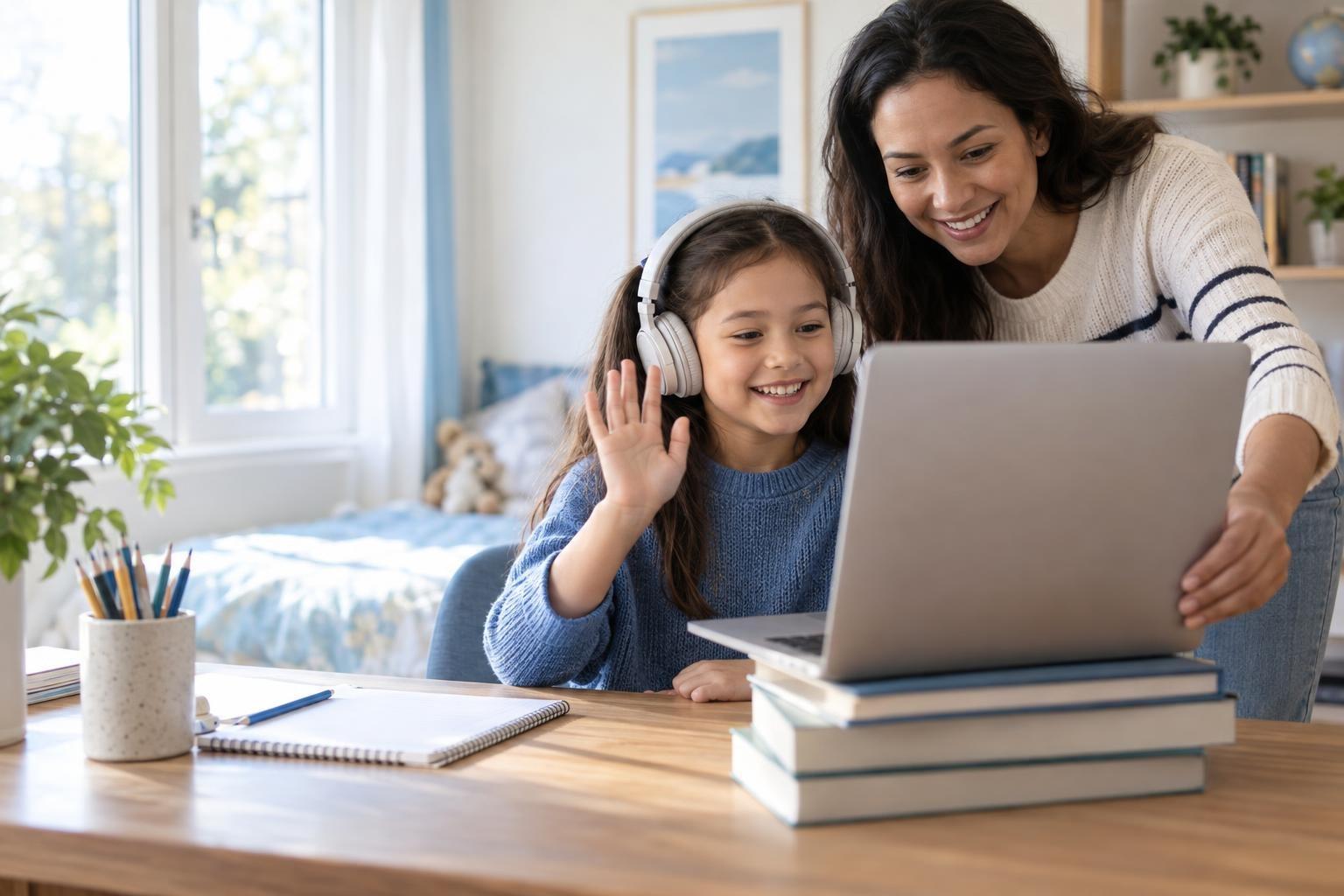
To join a live online class, your child needs a laptop, desktop or tablet with a camera and microphone, a steady internet connection and a quiet spot to sit. Check the class page for any software or supplies the teacher asks for, and a quick test the day before will make the first class smooth and stress-free.
A laptop is the best all-rounder, a steady connection matters more than a fast one, and a day-before check of time, camera, microphone, charging and supplies prevents most first-day hiccups. Join five minutes early, stay nearby for the first class, and talk afterward about what went well.
The quick checklist
- A laptop, desktop or tablet with a working camera and microphone
- Headphones or earbuds (optional, but they help in busy homes)
- A steady internet connection
- A quiet, well-lit spot
- Any supplies listed on the class page
- Your class time in your local time zone
- Water and a bathroom break before class starts
Choosing a device
Undoschool classes run live on Zoom. Once you enroll, the session link and class details appear in your dashboard. You click Join Session at the scheduled time.
| Device | Good for | Keep in mind |
|---|---|---|
| Laptop | Most classes, especially coding and writing | Easy to type and see the screen; best all-rounder |
| Desktop | Coding, design and long classes | May need a separate webcam and microphone |
| Tablet | Art, music, reading and younger kids | Use a stand; some coding tools may not work well |
| Phone | Backup only | Small screen makes it hard to see slides and classmates |
Coding and tech classes may need specific software or a full computer. The class page will say so.
Internet: how fast is fast enough?
Group video calls don't need blazing internet, but they do need a steady connection. Zoom's own guidance lists roughly 1 Mbps up and 0.6 Mbps down for standard group video. HD video needs more, around 2 to 4 Mbps.
- Sit close to the Wi-Fi router, or plug a computer into it with a cable.
- Pause big downloads, game updates and streaming on other devices during class.
- Run a free internet speed test from the class spot the day before.
Set up the day before
- Confirm the time. Check the class time in your dashboard and convert it to your time zone if needed. Add a reminder to your calendar.
- Update the device. Install any system updates now, not five minutes before class.
- Test camera and microphone. Open the camera app or a video call to make sure both work. Allow camera and microphone access when the browser or app asks.
- Charge everything. Charge the laptop or tablet fully, and keep the charger close.
- Read the class page again. Note any supplies, websites or software the teacher lists. Set up accounts ahead of time.
- Gather supplies. Put paper, pencils and any class materials in one spot.
Create a good learning spot
- Light from the front. Face a window or lamp so the teacher can see your child's face. Light behind them creates a shadow.
- Camera at eye level. Prop the device on books or a stand.
- Quiet and calm. Choose a spot away from TVs, siblings and pets if you can.
- Clear the desk. Keep only what's needed for class. Fewer toys mean fewer distractions.
- Check the background. Make sure nothing personal shows on camera, like mail or family photos with names.
On class day
- Join five minutes early. This leaves time to fix any sound or video issues.
- Check the display name. Use your child's first name only, so the teacher knows who they are.
- Review basic controls. Show your child how to mute, unmute, turn the camera on and use the chat or raise-hand button.
- Stay nearby for the first class. Younger kids may need help with tech. Older kids may just want you within earshot.
- Talk afterward. Ask what they liked and what felt tricky. Share any questions with the teacher.
Easing first-day nerves
New classes can feel big, even online. A few small steps help:
- Look at the teacher's profile and intro video together before class.
- Practice saying hello and their name on camera.
- Remind them it's fine to keep the camera off for a moment if they feel shy, then turn it on when ready.
- Many teachers offer a trial session. It's a low-pressure way to see if the class is a good fit.
Safety and screen time
Every Undoschool course is reviewed before it's listed, and classes are recorded for safety. A few home habits add peace of mind:
- Teach your child not to share their last name, address, school or passwords in class chat.
- Keep class links private. Don't post them on social media.
- Take a movement break between screen activities, especially for younger kids.
- Tell your child to come to you if anything in class makes them uncomfortable.
Frequently asked questions
Does my child need to install Zoom?
Your class link and joining steps are in your Undoschool dashboard. Follow the prompts there; if your device asks to install or allow an app, accept it a day early to test.
What if the internet drops mid-class?
Rejoin using the same link from your dashboard. If it keeps happening, move closer to the router or switch off other devices.
Does my child need headphones?
Not always, but they help in noisy homes and reduce echo. Wired or wireless both work.
Can my child use a phone to join?
Only as a backup. The small screen makes it hard to see slides and classmates, so a laptop, desktop or tablet on a stand works much better.
Find your child's first live class
All set up and ready to learn? A one-time class is a low-pressure way to try live online learning before committing to a longer course.